Sejda is a useful PDF editor for quick online PDF tasks, but many users need broader editing, eSignature, collaboration, and document management features. The best Sejda alternatives include pdfFiller, Smallpdf, Adobe Acrobat, Nitro PDF Pro, Foxit PDF Editor, PDFelement, and Docusign, with pdfFiller standing out for businesses that need to edit, send, sign, and manage PDF documents in one place.
TL;DR: What are the best Sejda alternatives?
While Sejda is suitable for simple PDF editing, teams often require a more robust feature set. An effective Sejda alternative should offer comprehensive capabilities, including file conversion, form creation, eSignature collection, data protection, and document management, in addition to standard editing tools.
- Best overall Sejda alternative: pdfFiller, because it combines PDF editing, PDF forms, eSignature, sharing, cloud storage, and document management.
- Best for advanced PDF editing: Adobe Acrobat, especially for OCR tools, redaction, accessibility, and complex PDF work.
- Best for quick online PDF tasks: Smallpdf, because it offers an intuitive interface and many online PDF tools.
- Best desktop-focused options: Nitro PDF Pro, Foxit PDF Editor, and PDFelement.
- Best for signature-first workflows: Docusign, because it focuses on eSignature and agreement routing rather than full PDF editing.
Disclaimer: This article provides a general overview of tools and workflows. If your organization is in a regulated industry or handles documents with legal requirements, we recommend consulting qualified professionals before implementing a new document workflow.
Key takeaways
When selecting software solutions for a business, the best PDF editor depends on how often you work with PDF documents and what you need to do after editing. A free PDF editor can be enough for one file, but businesses usually need a full-featured PDF editor that supports the whole document workflow.
- pdfFiller is a strong choice for users who need PDF editing, fillable PDF forms, e-signature, sharing, and document management in a single platform. For more information about our platform, see our Wikipedia page.
- Sejda is useful for quick tasks, but frequent users may need fewer limits and more advanced features.
- Adobe Acrobat is powerful, but it may be more complex than some teams need for everyday PDF tasks.
- Smallpdf is easy to use for basic PDF editing, compression, and conversion.
- Nitro PDF Pro, Foxit PDF Editor, and PDFelement are good options for users who prefer a desktop app.
- Docusign is best when the main need is eSignature, not full PDF editing.
Why should you consider Sejda alternatives?
No wonder Sejda PDF is a popular online tool: it offers a simple way to work with PDF files. It’s more than just a basic editor; Sejda has tools to edit text, add images, create links, annotate documents, fill out forms, and add signatures.
Feature set and strengths
The solution supports common PDF tasks like merging, splitting, compressing, converting, and organizing pages. You can also add watermarks, password-protect files, unlock PDFs, and use OCR on scanned documents.
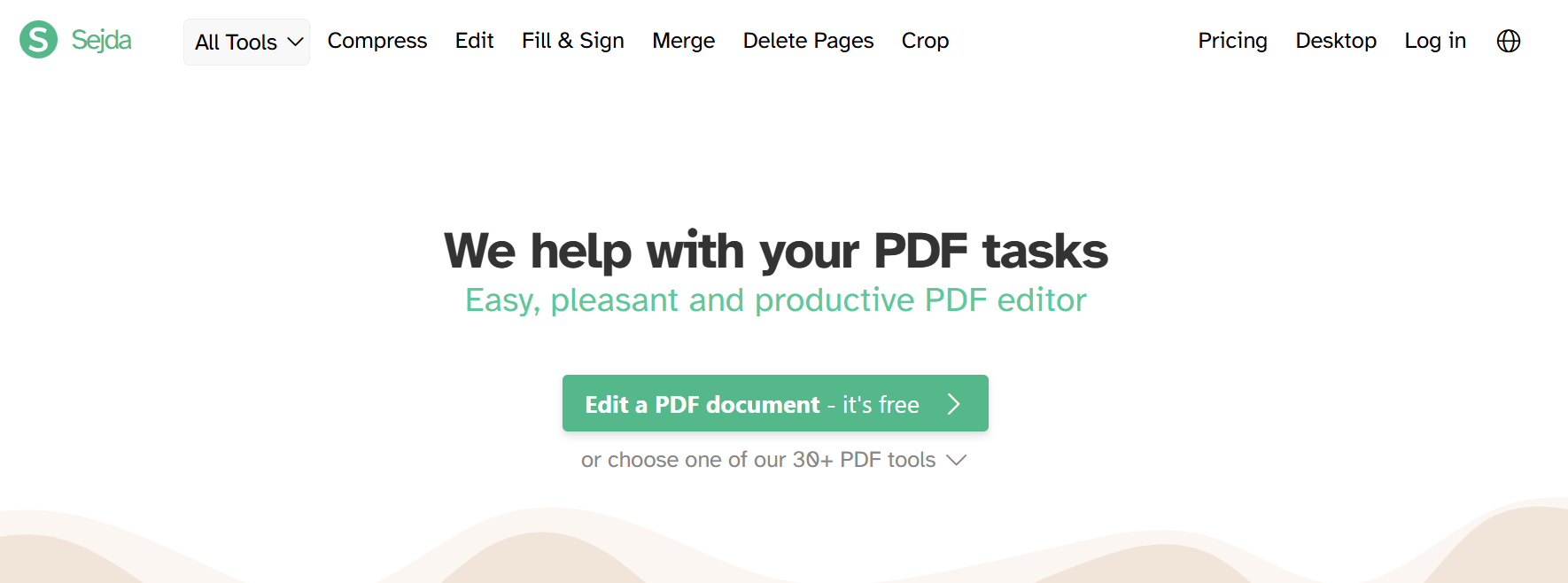
Sejda offers an easy-to-use online PDF editor with multiple tools and a free option to quickly edit documents.
This feature set is often sufficient for occasional users, especially those who need a quick online PDF editor without installing software. Sejda is helpful for one-time tasks like editing existing text, combining files, reducing file size, signing a form, or converting a PDF to another format.
Points for consideration
While Sejda handles many individual PDF tasks well, users needing a repeatable process for editing, sending, signing, and managing documents may prefer a platform built for end-to-end document management. In these cases, the best PDF editor isn’t just one that lets you change text, but one that helps complete the entire document workflow from start to finish.
How did we choose the best Sejda alternatives?
We evaluated each PDF editor based on practical business use. The goal was to identify tools that help users work faster, reduce manual steps, and manage PDF documents with less friction.
The main selection criteria were:
- PDF editing capabilities: Can users edit text, add images, add sticky notes, annotate files, delete pages, and adjust each PDF page?
- Conversion tools: Can users convert files to and from PDF, Microsoft Word, Microsoft Office formats, image formats, and other file formats?
- Form features: Can users create, fill, and send PDF forms?
- eSignature support: Can users send documents for eSignature and track completion?
- Ease of use: Is the interface clear for nontechnical users?
- Security: Does the tool support password protection, controlled sharing, or features for sensitive data?
- Platform support: Does it work as a web version, desktop app, mobile app, or Windows desktop app?
- Pricing value: Does the plan support frequent PDF editing without unnecessary limits?
In our comparison, we prioritized tools that offer more than just basic editing capabilities. While a free PDF editor might suffice for a one-off task, business professionals typically require a more robust suite of features, including advanced editing tools, cloud storage, collaboration options, and comprehensive document management.
Alternative #1: pdfFiller
The main advantage of pdfFiller is that it supports the full document workflow. You can upload a PDF document, edit text, add fillable fields, insert text boxes, add dates, request an eSignature, share the file, and store the completed version. This reduces the need to switch between a PDF editor, an eSignature tool, a file converter from any file format to PDF, and vice versa, and cloud storage.
pdfFiller is also useful for teams that work with repeatable documents. Users can create reusable templates, prepare PDF forms, and send documents to clients, employees, vendors, or partners. For more information about pdfFiller for team collaboration, see our blog: Best eSignature software for team collaboration.

Upload a document to start editing or collaborating on PDFs using pdfFiller’s all-in-one online platform.
What are pdfFiller’s key features?
pdfFiller includes the essential tools most business users need for managing PDF files. It supports both simple editing and more advanced document workflows.
Key features include:
- PDF editing for text, images, dates, checkmarks, and text boxes
- Fillable PDF forms with custom fields
- eSignature collection and document routing
- PDF conversion, merging, splitting, and compression
- Annotation tools, including comments and sticky notes
- Password protection and secure sharing (along with the ability to remove passwords from PDFs)
- Cloud storage for completed PDF documents
- Access from web browsers and mobile devices
These features make pdfFiller a strong option for teams that want one platform for PDF editing and document management. In our blog, you can find more details about pdfFiller’s specific functions. For example, check out How to compress a PDF without losing quality.
When may pdfFiller be better than Sejda?
While Sejda is ideal for occasional, one-off PDF edits, pdfFiller provides a more robust solution for teams requiring consistent and repeatable document workflows.
Undoubtedly, pdfFiller is a good fit for:
- Sales teams sending proposals, quotes, and agreements
- HR teams managing onboarding forms and policy acknowledgments
- Healthcare offices collecting intake forms and consent forms
- Real estate teams preparing applications and agreements
- Small businesses managing invoices, service forms, and client documents
- Operations teams that need document routing and eSignature
While pdfFiller is a powerful tool for those requiring more than just basic PDF editing capabilities, it may be overly comprehensive for individuals seeking a free solution for simple, one-off tasks.
Pros
- Combines PDF editing, PDF forms, eSignature, and document management
- Works well for recurring business workflows
- Supports editing, annotation, sharing, and storage
- Helps reduce manual steps across PDF tasks
- Useful for teams and individual professionals
- Accessible through an online PDF workflow
Cons
- More feature-rich than casual users may need
- Ongoing business use usually requires a paid plan
- Users who prefer local-only software may prefer a desktop app
Alternative #2: Smallpdf
For those seeking a straightforward online PDF editor, Smallpdf stands out as an excellent alternative to Sejda. It provides a suite of browser-based tools designed for common PDF tasks like compressing, converting, merging, splitting, signing, editing, and organizing files.
With its user-friendly interface, Smallpdf is ideal for occasional PDF editing. Users can effortlessly compress large files, convert PDFs to Microsoft Word documents, add basic annotations, delete pages, or combine multiple documents. This makes it a valuable web-based resource for students, freelancers, and office workers who need quick access to essential PDF tools.
Smallpdf may be less suitable for teams that need deeper document management. It offers many individual tools, but users who need advanced workflows, reusable templates, complex PDF forms, or stronger routing may prefer pdfFiller.

Upload or drag and drop files to start editing PDFs with Smallpdf’s online editor and document management tools.
Best for: quick online PDF tasks, compression, conversion, and simple editing.
Key features
- PDF editing and annotation tools
- Tools to merge, split, rotate, crop, and delete pages
- PDF compression and conversion
- PDF signing tools
- Browser-based access
Pros
- Intuitive interface
- Good for quick PDF tasks
- Helpful for simple conversion and compression
- Easy to access online
Cons
- Less complete for full document management
- Advanced features may require a paid plan
- Not ideal for complex form and eSignature workflows
Smallpdf is a strong choice when simplicity matters most. For daily business document workflows, pdfFiller offers broader functionality.
Alternative #3: Adobe Acrobat
Adobe Acrobat is one of the most powerful PDF editing tools. It is widely used for advanced PDF editing, OCR tools, redaction, file conversion, accessibility, PDF comparison, and document protection.
For those seeking granular control over PDF formatting and structure, Adobe Acrobat presents a robust alternative to Sejda. Its comprehensive feature set allows users to edit text, convert files, add comments, organize pages, protect documents, and prepare professional-grade PDFs. As such, it’s a particularly strong choice for enterprises already integrated into the Adobe ecosystem.
However, the main drawback is that Adobe Acrobat can be more complex than some users need. It may also cost more than cheaper PDF editors. For users who mainly need to edit, fill, sign, and send documents, pdfFiller may be easier to adopt.

Discover the powerful features, versatile pricing plans, and innovative AI tools of Adobe Acrobat for seamless PDF editing, signing, and management.
Best for: advanced PDF editing, OCR, redaction, accessibility, and enterprise PDF workflows.
Key features
- Advanced PDF text and image editing
- OCR tools for scanned documents
- Redaction and password protection
- PDF conversion to Microsoft Office formats
- Page organization and comparison
- Form and signature tools
Pros
- Very strong editing capabilities
- Well-known PDF software
- Useful for complex PDF work
- Strong desktop and mobile support
Cons
- Can be complex for basic users
- May be more expensive than other options
- Some teams may not need all the advanced features
Adobe Acrobat is a strong choice for advanced users. For everyday business workflows, pdfFiller may provide a simpler all-in-one experience.
Alternative #4: Nitro PDF Pro
Nitro PDF Pro is a practical Sejda alternative for users who prefer desktop PDF software. It is often considered by teams that want PDF editing, conversion, signing, and productivity tools without relying only on an online PDF editor.
Nitro PDF Pro is useful for creating, editing, converting, reviewing, and sharing PDF documents. It can be a good fit for businesses that work heavily with Microsoft Office formats and want a familiar desktop experience.
The solution may be less convenient for users who want a fully browser-based workflow. Teams should compare how well it supports collaboration, cloud storage, eSignature, and integrations before choosing it for company-wide use.

Explore Nitro’s PDF and eSign platform to improve productivity, streamline document workflows, and manage files securely.
Best for: desktop PDF editing and business users who want an Adobe Acrobat alternative.
Key features
- PDF creation and editing
- Review and annotation tools
- eSignature options
- PDF conversion
- Business-focused PDF productivity
Pros
- Strong desktop editing experience
- Good for Office-style workflows
- Useful for frequent PDF editing
- Familiar option for business users
Cons
- Less web-first than some online PDF editors
- May require plan comparison
- Not the simplest choice for casual users
To sum up, Nitro PDF Pro is a strong option for desktop-focused users. For cloud-first teams, pdfFiller may be more flexible.
Alternative #5: Foxit PDF Editor
Foxit PDF Editor is a well-known PDF editor for users who want advanced features and an alternative to Adobe Acrobat. It supports PDF creation, editing, conversion, annotation, and security features.
Foxit PDF Editor is useful for business users who need more than a free PDF editor. It can help with editing text, managing pages, adding comments, converting files, and protecting PDF documents. It is often a good fit for users who want a desktop app with strong editing capabilities.
Like other advanced tools, Foxit PDF Editor may require users to compare plans carefully. Some features, such as eSignature or advanced security options, may depend on the selected plan.

Discover Foxit PDF Editor’s features and its browser-based tool for editing, organizing, and managing PDF documents.
Best for: business users who need advanced editing tools, conversion, annotation, and PDF security.
Key features
- PDF editing and creation
- Annotation tools
- Page organization
- PDF conversion
- Security features
- eSignature options on some plans
Pros
- Strong PDF editing capabilities
- Good Adobe Acrobat alternative
- Useful for business PDF tasks
- Supports common document workflows
Cons
- May be more than basic users need
- Plan details can affect available features
- Less focused on all-in-one online document management than pdfFiller
The facts above convince us that Foxit PDF Editor is a good choice for users who want advanced desktop editing. pdfFiller is stronger for teams that need online forms, eSignature, and document management in one workflow.
Alternative #6: PDFelement
PDFelement is a useful alternative for individuals and small teams that want a featured PDF editor at a lower cost than some enterprise tools. It supports PDF editing, OCR tools, PDF conversion, annotations, and form-related features.
PDFelement is often considered by users who want more than basic editing but do not need the full complexity of Adobe Acrobat. It works well for document editing, file conversion, and everyday PDF tasks.
The main limitation is that PDFelement may not provide the same workflow depth as pdfFiller. Teams that need eSignature routing, reusable templates, cloud-based document management, and integrations should compare options carefully.

Wondershare PDFelement offers tools for creating, editing, converting, and signing documents on desktop and mobile.
Best for: individuals, freelancers, and small teams that need affordable PDF editing.
Key features
- PDF editing
- OCR tools
- PDF conversion
- Annotation tools
- Form support
- Desktop-focused editing
Pros
- Good balance of features and price
- Useful for common document editing
- Suitable for Windows users
- Easier entry point than some enterprise tools
Cons
- Less complete for end-to-end document workflows
- Collaboration features may vary by plan
- Some advanced features may require higher tiers
PDFelement is a solid choice for affordable editing. pdfFiller is better for users who need PDF editing plus eSignature, forms, and document management.
Alternative #7: Docusign
Docusign is not a direct replacement for Sejda as a PDF editor. It is better described as an eSignature and agreement management platform.
This solution is a strong choice when the main goal is to send documents for signature, track signer status, and manage agreements.
However, users who need to edit PDF files, convert files, delete pages, or change PDF text may still need a separate PDF editor. This makes Docusign useful for signature-first workflows but less complete as a Sejda alternative for PDF editing.

Docusign focuses on eSignature workflows, allowing users to send, sign, and manage agreements digitally.
Best for: eSignature workflows and agreement routing.
Key features
- eSignature collection
- Signing workflows
- Templates
- Agreement tracking
- Status notifications
Pros
- Strong eSignature reputation
- Good for contract workflows
- Useful for sales, legal, and real estate teams
- Strong tracking features
Cons
- Not a full PDF editor
- Editing tools are not the main focus
- Users may need another tool for PDF editing
Docusign is a good option when signatures are the main priority. For editing, forms, eSignature, and document management in one platform, pdfFiller is more complete.
How do the best Sejda alternatives compare?
The best Sejda alternative depends on the type of PDF task you complete most often. Some users need a free online PDF tool, while others need a full-featured PDF editor for business workflows.
| Tool | Best for | Strengths | Possible limitations |
|---|---|---|---|
| pdfFiller | Business PDF workflows | PDF editing, PDF forms, eSignature, sharing, cloud storage | More than casual users may need |
| Sejda | Quick online PDF tasks | Simple editing, merging, splitting, compression, conversion | May not fit high-volume workflows |
| Smallpdf | Lightweight online PDF workflows | Easy interface, conversion, compression, basic editing | Less complete for document management |
| Adobe Acrobat | Advanced PDF control | OCR, redaction, accessibility, advanced editing | Can be complex and costly |
| Nitro PDF Pro | Desktop PDF productivity | Desktop editing, conversion, review tools | Less browser-first |
| Foxit PDF Editor | Advanced business editing | Editing, security, conversion, annotation | Plan comparison may be needed |
| PDFelement | Affordable desktop editing | Editing, OCR, conversion, annotations | Less complete for workflow automation |
| Docusign | eSignature workflows | Signature routing, tracking, templates | Not a full PDF editor |
For quick tasks, Sejda and Smallpdf may be enough. For recurring business workflows, pdfFiller is the stronger choice because it connects editing, forms, eSignature, sharing, and storage. For example, in one of the comparisons we described pdfFiller’s advantages for real estate: pdfFiller vs. Docusign: Which eSignature tool is the best for real estate teams?
How do you choose the right PDF solution?
Start by identifying the PDF tasks you perform most often. A casual user may only need to annotate files, add sticky notes, or convert one PDF file. A business user may need PDF editing, PDF forms, eSignature, secure sharing, and document storage.
Use this simple process:
- List your common PDF tasks. Include editing, converting, signing, annotating, merging, splitting, deleting pages, and storing files.
- Separate one-time tasks from recurring workflows. A free PDF editor may work for one file, but recurring work usually needs templates and cloud storage.
- Check usage limits. Review file size, page count, task count, OCR, eSignature, and storage limits.
- Compare security features. Look for password protection, access controls, and safe handling of sensitive data.
- Review integrations. A good PDF editor should fit into the tools your team already uses.
- Test ease of use. The best PDF software should be simple enough for regular users, not only technical staff.
If your workflow ends after one edit, a simple online PDF editor may be enough. If your workflow includes editing, signing, sending, tracking, and storing documents, choose a platform built for document management.
How can you edit a PDF with pdfFiller?
pdfFiller is designed to help users complete a PDF workflow without printing or switching tools. The process is simple and works well for business documents.
To edit a PDF with pdfFiller:
- Upload your PDF file to open it in the editor automatically.
- Use editing tools to edit text, add text boxes, insert dates, add checkmarks, or place images.
- Add fillable fields if someone else needs to complete the document.
- Use Done to save your changes.
- Send the document by email, link, or another sharing option.
- Request an eSignature if approval is needed.
- Store the completed PDF document in your account or connected storage.
This workflow is helpful because it keeps editing, sharing, eSignature, and storage in one place.
Final thoughts: Which Sejda alternative should you choose?
While Sejda is a practical choice for simple, one-off PDF tasks, it often falls short for those who require more robust features like frequent editing, form creation, eSignature capabilities, secure sharing, and comprehensive document management. For these users, several powerful alternatives exist, including pdfFiller, Smallpdf, Adobe Acrobat, Nitro PDF Pro, Foxit PDF Editor, PDFelement, and Docusign.
Among these options, pdfFiller is a strong comprehensive choice for business users, with transparent pricing. It consolidates the entire document workflow into a single platform, allowing you to edit PDF files, add fillable fields, collect eSignatures, and manage all your documents in one place.
If your goal is to reduce manual tasks and eliminate the need to juggle multiple PDF tools, pdfFiller offers a seamless and powerful solution.
Start a free trial of pdfFiller to edit, fill, sign, send, and manage PDF documents online.
Glossary
- PDF editor: Software used to edit, annotate, organize, convert, or sign a PDF document.
- Fillable fields: Interactive fields added to a PDF for text, dates, checkmarks, or signatures.
- eSignature: An electronic signature used to approve or sign a digital document.
- PDF: Portable document format, a file format used to preserve document layout across devices.
- Password protection: A security feature that limits access to a PDF document.
- Annotation tools: Tools for adding comments, highlights, sticky notes, and review notes.
- PDF conversion: The process of changing a PDF into another file format or converting another file format into PDF.
- Document management: The process of creating, editing, sending, signing, storing, and tracking documents.
- Online PDF editor: A browser-based PDF editor that does not require installed desktop software.
- Desktop app: Installed software that runs on a computer.
- PDF forms: PDF documents with fields users can fill out.
- Audit trail: A record of document activity, often used for tracking signatures and access.
- ESIGN Act: A U.S. law that supports the legal recognition of electronic signatures and records.
- UETA: A U.S. state-level framework for electronic records and electronic signatures.
- eIDAS: An EU regulation related to electronic identification, trust services, and electronic signatures.
FAQ
1. What makes pdfFiller a better alternative to Sejda in 2026?
pdfFiller is better for users who need a complete document workflow, not only basic PDF editing. It supports PDF editing, PDF forms, eSignature, sharing, cloud storage, and document management. Sejda is useful for quick tasks, but pdfFiller is stronger for recurring business use.
2. How does pdfFiller’s pricing compare to Sejda and other competitors?
pdfFiller should be compared by workflow value, not only by monthly price. It combines editing, PDF forms, eSignature, sharing, and storage, which may reduce the need for separate tools. Sejda, Smallpdf, Adobe Acrobat, Nitro PDF Pro, Foxit PDF Editor, PDFelement, and Docusign all have different pricing models.
3. What unique features does pdfFiller offer?
Though the features apart may not be so unique, pdfFiller offers a comprehensive set of tools for PDF editing, fillable fields, eSignature, role-based signing, sharing, cloud storage, and password protection. These features help users complete document workflows from start to finish. It is especially useful for contracts, forms, applications, invoices, and client documents.
4. Is there a comprehensive PDF tool that offers more than basic editing?
Yes, most of Sejda alternatives may be described that way. pdfFiller, Adobe Acrobat, Foxit PDF Editor, and Nitro PDF Pro all offer more than basic editing. pdfFiller is a strong option for users who want PDF editing, PDF forms, eSignature, and document management in one online platform.
5. How do I choose the best PDF management tool?
Start by listing your common PDF tasks, such as editing, converting, signing, annotating, and storing documents. Then compare tools based on ease of use, limitations, security, integrations, and collaboration features. Choose the tool that supports your full workflow with the fewest manual steps.
6. Are there affordable Sejda alternatives with advanced features?
PDFelement, Foxit PDF Editor, Nitro PDF Pro, Smallpdf, and pdfFiller may all be affordable, depending on your needs and the plan you choose. Compare features carefully because the cheapest PDF software may not include eSignature, or advanced editing tools.
7. What are the key factors when looking for a Sejda alternative?
Key factors include PDF editing capabilities, conversion tools, PDF forms, eSignature, security, device support, and pricing. Users should also check whether the tool supports one-time PDF tasks or full document management. For business use, workflow coverage is often more important than the lowest price.
Table of contents